8D Audio on iPhone: How to Get the 8D Effect
8D audio is the effect of a song circling around your head on headphones. iPhone has no 8D switch, but you can get the same effect in EQfy - Louder Volume: open a song, go to the 3D Audio tab, switch on Spatial Audio, choose 3D Source and tap the Orbit motion. The sound travels in a circle around you, and a Speed slider sets how fast. Put on headphones first, because the effect depends on them.
What "8D audio" actually means
There are no eight dimensions in it. "8D audio" is a label for a style of mix where the sound seems to move around your head instead of sitting between your ears. It isn't a file format or an Apple setting, and there's no standard that defines it. In practice it combines two things: a sound source that keeps moving (left, behind you, right, in front) and processing that makes each ear hear it a little differently, the way real direction works. Reverb often helps, because it adds a sense of space.
That's why headphones matter. The effect relies on each ear getting its own signal, so on the iPhone speaker the movement mostly sounds like the volume sliding from side to side. For the background on how this works, read 3D audio on iPhone, explained.
How to get the 8D effect on iPhone
- Get the song into EQfy. Import an MP3, M4A or other audio file from Files or your Music library. The steps are in our guide to playing MP3 files on iPhone offline. Songs from an Apple Music subscription are protected and can't be used.
- Put on headphones. Any wired or Bluetooth headphones work. Start with the volume lower than usual, then raise it once you know how the effect sounds.
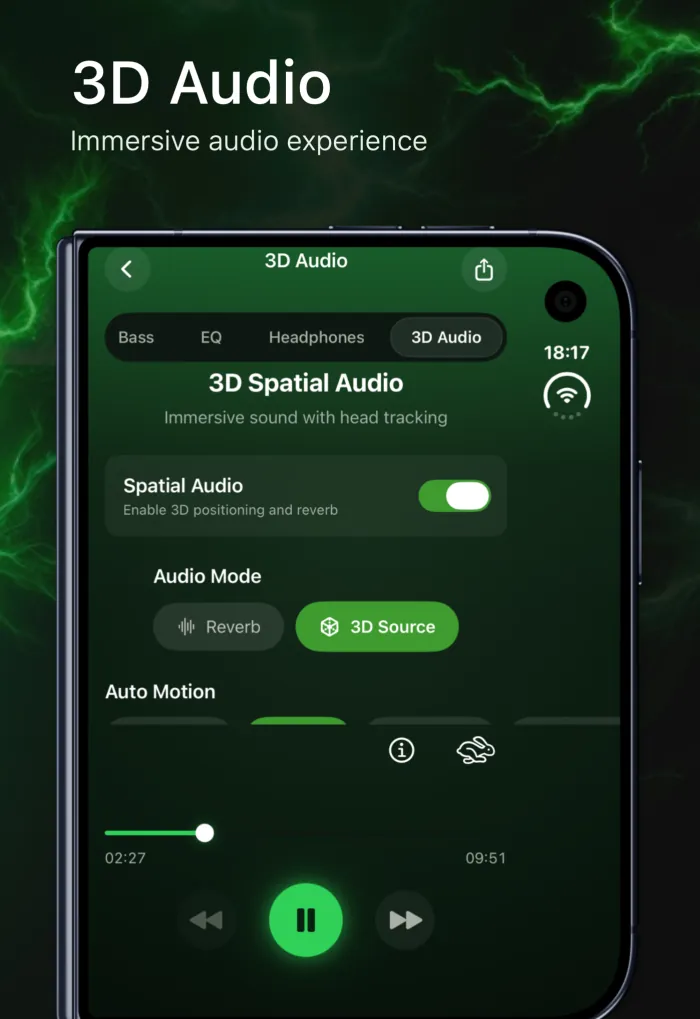
- Open the 3D Audio tab. Open the song and choose 3D Audio next to Volume, Bass, EQ and Headphones. It's a Premium tool.
- Turn on Spatial Audio. The toggle is labelled "Enable 3D positioning and reverb".
- Choose 3D Source. In the Audio Mode choice, pick 3D Source, not Reverb. Reverb puts the song in a room but doesn't move it.
- Tap Orbit under Auto Motion. The song starts to circle around your head. Tap the same button again to stop.
- Set the speed. A Speed slider appears while a motion is on. It goes from Slow to Fast, 0.25× to 2.00×. EQfy remembers your setting.
The four Auto Motion patterns
Orbit is the closest match to the classic 8D sound, but EQfy has three other patterns. These are the times at the default 1× speed:
| Pattern | What the sound does | One cycle at 1× |
|---|---|---|
| Orbit | Circles around your head at ear level | 10 seconds |
| Bilateral | Swings from your left ear to your right and back | 5 seconds |
| Figure 8 | Traces a figure-eight around you | 12.5 seconds |
| Breathing | Rises and falls slowly, up and down | about 6.7 seconds |
The Speed slider scales all four. For Orbit, a full lap takes 10 seconds at 1×, 5 seconds at 2× and 40 seconds at 0.25×. A slow orbit feels calm and spacious; a fast one is more dramatic but tiring over a whole album.
Tips for a better effect
- Start slow. Try 0.5× to 1× first. A slower lap is easier to follow and less tiring.
- Pick the right songs. Tracks with a clear vocal and a steady beat show the movement well. Very busy mixes can feel chaotic.
- Use only one 3D mode at a time. Reverb and 3D Source are separate choices. Try both on the same song and keep the one you like.
- Try head tracking with AirPods. In 3D Source mode, EQfy can follow your head with supported AirPods such as AirPods Pro or AirPods Max. The tab shows "AirPods detected" when it's available, and iOS asks for motion access. Compare the sound with and without it. It's EQfy's own effect, not Apple's Spatial Audio.
- Check the balance. If one ear sounds louder than the other, use the settings in our headphone balance guide. In 3D Source mode the in-app balance slider isn't part of the sound chain.
- Mind the volume. Keep the level moderate, as explained in is volume boosting safe?
Want the slowed and reverb sound too?
If the song you want to turn into an 8D track is also one you like slowed down, EQfy's playback speed (0.5× to 2×) keeps the pitch the same, so it isn't the pitched-down "slowed" sound. The details and the reverb presets are in slowed and reverb on iPhone.
What it can't do
- It's a live effect, not an 8D converter. The effect plays in the EQfy player. If you share or export a song, EQfy includes the volume boost, EQ, bass and speed, but not 3D Audio, reverb or balance, so you can't save an 8D version.
- It only works on songs inside EQfy. iOS doesn't let EQfy change Spotify, YouTube, Apple Music streaming or other apps.
- The 3D Audio tab needs a connection. With no internet, the player shows only the Volume dial, so switch the effect on while you're online.
Frequently asked questions
Does iPhone have an 8D audio setting?
No. "8D audio" is a style of mix, not an iOS feature, so there is no switch for it in Settings. Apple's Spatial Audio is a different, system-level feature. To get the circling effect on your own songs, use an app such as EQfy with its 3D Source mode and the Orbit motion.
Do I need headphones for 8D audio?
Yes, for the effect to work well. The sense of a sound moving around your head depends on each ear getting its own signal. On the iPhone speaker the movement mostly sounds like the volume sliding between the left and right sides.
Can I save an 8D version of a song with EQfy?
No. EQfy's 3D Audio is a live effect that plays inside the app. When you share or export a song, the volume boost, EQ, bass and speed are included, but 3D Audio, reverb and balance are not. See how exporting works.
Can I make Spotify or YouTube songs 8D?
No. iOS only lets EQfy process audio played inside EQfy, so it can't add 3D Audio to Spotify, YouTube, Apple Music streaming or other apps. Songs from an Apple Music subscription are protected and can't use the effect either.