Left-Right Audio Balance on iPhone: How to Fix It
To change the left-right audio balance on iPhone, open Settings › Accessibility › Audio & Visual and drag the Balance slider; keep it in the middle for equal sound in both ears. If one AirPod is still louder than the other, clean the speaker mesh, check the fit and reset your AirPods. If one side sounds quieter with every pair of headphones, talk to a hearing professional.
Quick checklist: one side quieter than the other
Work through these in order, starting with the quickest checks.
- Center the Balance slider in Settings › Accessibility › Audio & Visual.
- Play two or three different songs to rule out an unevenly mixed track.
- Check the speaker mesh for wax or dust and clean it carefully.
- Reseat the earbuds or try a different ear tip size.
- Put AirPods back in the case for 30 seconds, then reset them if needed.
- Try a different pair of headphones. If the same ear is still quieter, see a professional.
How to set left-right audio balance on iPhone
The Balance slider is an accessibility setting built into iOS. It's system-wide, so it affects every app. These steps follow Apple's iPhone User Guide:
- Open the Settings app.
- Tap Accessibility, then tap Audio & Visual.
- Scroll to Balance and drag the slider toward the left or right.
- To make both sides equal again, drag it back to the middle.
Check this slider even if you don't remember changing it. It's easy to nudge by accident, and Apple's own troubleshooting for uneven AirPods includes making sure it's centered.
When to turn on Mono Audio
On the same screen you'll find Mono Audio. When it's on, the left and right sides play the same content instead of separate stereo channels. It helps when:
- you listen with only one earbud in;
- you hear better in one ear than the other;
- a song has instruments panned hard to one side, which is common in some older stereo recordings.
Mono Audio makes sure you hear the whole mix in each ear. It doesn't make a quiet earbud louder, so if one side is weaker, keep working through the causes below.
Why is one AirPod louder than the other?
Apple's support article on a left or right AirPod that isn't working covers both silence and uneven volume. Here are the usual causes and what to do about each.
The audio itself is uneven
Not every recording is balanced. Some songs, podcasts and videos have more going on in one channel, and a few were mixed or uploaded badly. If only one track or one app sounds lopsided, the content is the likely cause, not your headphones. If you use EQfy - Louder Volume, also check that its Headphones tab is set to Centre.
Earwax or debris on the speaker mesh
A thin layer of wax or dust on the mesh can noticeably muffle one side. Apple suggests removing the ear tips, checking the speaker and microphone mesh on each AirPod, and cleaning any debris. Follow the model-specific steps in Apple's AirPods cleaning guide, and don't push sharp objects into the mesh or run AirPods under water. The same idea applies to other earbuds: check the manufacturer's cleaning advice.
Fit and ear tips
In-ear headphones rely on a good seal. If one side sits loosely, it loses volume and especially bass, so that side can sound quieter even when nothing is wrong with it. Reseat the earbud, and try a different ear tip size; many people need different sizes for each ear.
A Bluetooth or connection glitch
Sometimes one earbud simply falls out of sync. Put both AirPods in the charging case for 30 seconds, open the lid near your iPhone, and check that both are charging. If one side is still off, reset them: on your iPhone go to Settings › Bluetooth, tap the More Info button next to your AirPods and tap Forget This Device, then reset them from the case. The exact reset steps differ by model, so use Apple's AirPods reset guide.
Wired headphones and adapters
With wired headphones, a plug or adapter that isn't fully pushed in can drop or weaken one channel. Reconnect it firmly, check the iPhone's port for lint, and try another adapter if you use one. If one side crackles or cuts out when you move the cable, the cable itself may be damaged, and no software setting will fix that.
A difference in your hearing
If the hardware checks out, run a simple comparison. Turn on Mono Audio so both sides get identical sound, center the Balance slider, and listen with a different pair of headphones, or on another device. If the same ear seems quieter every time, the difference may be in your hearing rather than in the headphones. A left-right channel test track, easy to find online, makes the comparison quicker.
When to see a professional
A balance slider can offset a small, steady difference, but it can't tell you why the difference is there. Talk to a doctor or a hearing professional if:
- the change in one ear came on suddenly;
- it comes with ear pain, ringing, a blocked feeling or dizziness;
- one side still sounds quieter after cleaning, resetting and trying other headphones.
Avoid turning the volume up to make up for a quieter ear, because that raises the level in your other ear too. Apple also offers hearing features you can use alongside professional advice: with supported AirPods Pro, the Health app can run a Hearing Test (for adults, not available in every region) and export the results to share with a hearing healthcare professional, and Headphone Accommodations (in the same Audio & Visual menu) can make soft sounds louder and boost certain frequencies with supported Apple and Beats headphones. With some models you can even use an audiogram to customize it.
Fine-tune headphone balance in EQfy
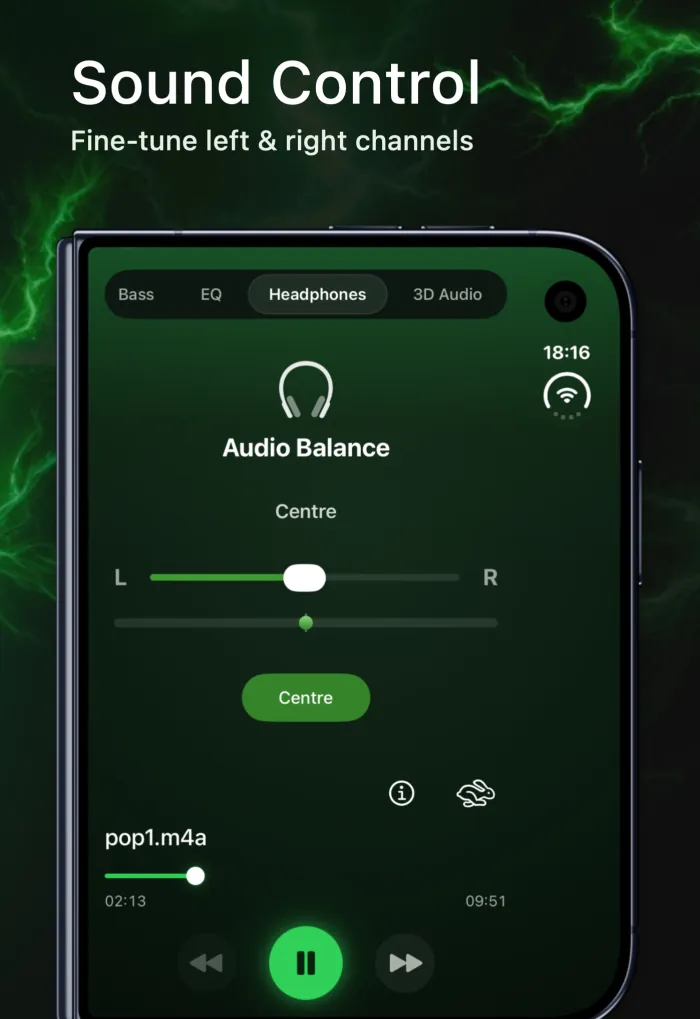
EQfy has its own Headphones tab with a left-right Audio Balance slider and a Centre button that sets it back to the middle. Unlike the iOS slider, it only changes audio played inside EQfy. That's handy if you want a slightly different balance for your music without changing every other app on your iPhone.
- Download the app from the App Store, where it's listed as Volume Booster Sound Amplifier. It's free to download.
- Add songs from your iPhone's Music library or from the Files app.
- Play a track and tap the Headphones tab in the player.
- Drag the Audio Balance slider toward the side you want louder.
- Tap Centre to return to an even balance.
Get both sides sounding right
Once the balance is even, you can shape the sound itself. If your AirPods feel too quiet overall, see how to make AirPods louder. To adjust bass, vocals or treble, try our best EQ settings for iPhone, and for room-like depth, see 3D audio on iPhone explained. And before you raise the volume, read is volume boosting safe? You can also see every tool on the sound control overview.
Frequently asked questions
Where is the balance setting on iPhone?
Go to Settings › Accessibility › Audio & Visual and scroll to Balance. Drag the slider left or right, and keep it in the middle for equal sound in both ears.
Why is one AirPod louder than the other?
Common causes are debris on the speaker mesh, a Balance slider that isn't centered, a loose fit, or a connection glitch. Clean the mesh following Apple's instructions, check the slider, then put both AirPods in the case for 30 seconds or reset them.
Does Mono Audio fix one quiet earbud?
Not on its own. Mono Audio sends the same sound to both sides, so you don't miss parts of a song, but it won't make a blocked or faulty earbud louder.
Does EQfy's balance slider change the whole iPhone?
No. It only changes audio played inside EQfy, not Spotify, YouTube, calls or system sounds. For everything else, use the Balance slider in iOS Settings.
Should I see a doctor if one ear always sounds quieter?
If the difference stays the same with every pair of headphones, came on suddenly, or comes with pain or ringing, talk to a doctor or hearing professional. Don't keep turning the volume up to compensate.