3D Audio on iPhone, Explained: Spatial vs. Reverb
"3D audio" on iPhone usually means one of two things. Apple's Spatial Audio, with Dolby Atmos songs in Apple Music and head tracking on supported AirPods, is a system feature for content that supports it. The 3D Audio in EQfy - Louder Volume is something different: an in-app effect that puts your music in a virtual room or moves it around your head, for songs you play inside EQfy.
Below, you'll find how 3D sound works, a short explainer on Apple's Spatial Audio with the exact iPhone settings, and how EQfy's Reverb and 3D Source modes compare.
What "3D audio" actually means
Ordinary stereo places sound on a line between your left and right ear. 3D audio tries to place sound all around you: in front, behind, above, or inside a space much bigger than your headphones.
Your brain locates sounds from small differences between your two ears: which ear hears a sound first, how loud it is on each side, and how your head and outer ears color the sound depending on its direction. Audio software can imitate those cues. This is usually called binaural or HRTF (head-related transfer function) processing, and it works best on headphones, because each ear gets its own signal.
Room sound is the other half of the illusion. In a real space you hear the direct sound plus many reflections from the walls, floor and ceiling. Reverb recreates those reflections, which is why a dry recording can suddenly feel like it's playing in a hall or a cathedral.
Spatial audio on iPhone, explained
When people talk about spatial audio on iPhone, they usually mean Apple's features. There are two parts, and both depend on the content and the headphones you use.
Dolby Atmos in Apple Music
Dolby Atmos is an object-based audio format: instead of mixing only to left and right, engineers can place instruments around and above the listener. If you subscribe to Apple Music, you can listen to select songs in Spatial Audio with Dolby Atmos. To check the setting:
- Update your iPhone to the latest version of iOS.
- Open Settings › Apps › Music.
- Under Audio, tap Dolby Atmos.
- Choose Automatic, Always On or Off.
In Automatic mode, supported songs play in Dolby Atmos with Apple or Beats Bluetooth headphones and on the built-in speakers of iPhone XS or later (except iPhone SE). With wired headphones, Apple recommends Always On. Songs that support it show a Dolby Atmos badge. Source: About Spatial Audio with Dolby Atmos in Apple Music.
Spatial Audio and head tracking on AirPods
With supported AirPods, Spatial Audio can also use head tracking, so sound seems to come from your iPhone even as you turn your head. To change it, wear your AirPods, open Control Center, touch and hold the volume control, tap Spatial Audio and choose:
- Off: Spatial Audio and head tracking are both off.
- Fixed: Spatial Audio without head tracking.
- Head Tracked: Spatial Audio with head tracking.
Your iPhone saves this choice separately for each app. Apple notes that Spatial Audio isn't available for all apps or content; it works with supported shows, movies, songs and games, and with FaceTime calls. Source: Control Spatial Audio and head tracking on AirPods.
EQfy's 3D Audio: an in-app effect
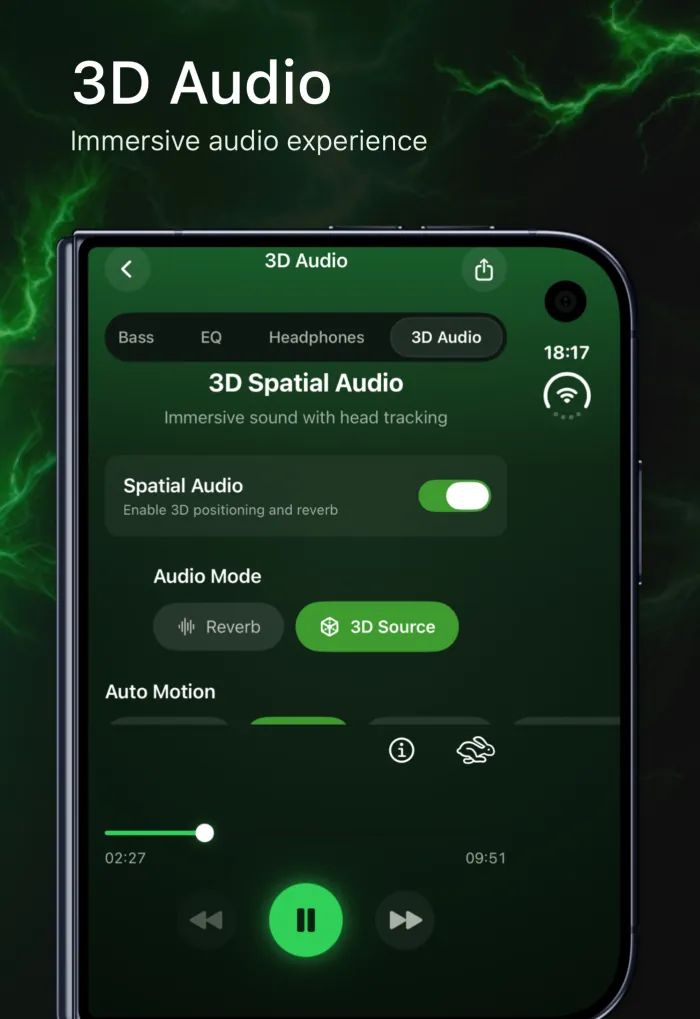
EQfy's 3D Audio is its own effect, built into the EQfy player. It isn't Apple Spatial Audio, and it doesn't turn songs into Dolby Atmos mixes. Instead, it processes the song you're playing in EQfy in one of two modes. You'll find it in the 3D Audio tab of the player, next to Volume, Bass, EQ and Headphones. It's a Premium tool.
Reverb mode: put your music in a room
Reverb mode places the song in a virtual space. If you were looking for a reverb app for iPhone to make songs sound bigger, this does the job right inside the player. There are 9 presets, and the Reverb Blend slider sets how much of the effect you hear, from dry to wet.
| Preset | What it sounds like | Try it with |
|---|---|---|
| Small Room | Short, close reflections; subtle | Acoustic songs, spoken word |
| Medium Room | Natural room ambience | Most pop and rock |
| Large Room | More space, a longer tail | Band recordings, live-style sound |
| Medium Hall | Concert-hall feel | Piano, classical |
| Large Hall | Big and spacious, long decay | Orchestral, film scores |
| Medium Chamber | Dense, smooth reflections | Vocals, strings |
| Large Chamber | A bigger, richer chamber | Ballads, slow songs |
| Cathedral | Very long, airy decay | Choir, ambient, meditation music |
| Plate | Bright, smooth studio-style reverb | Pop vocals, drums |
These are starting points, not rules. Reverb is personal, so try a few presets on the same song and keep the one you like.
3D Source mode: move the sound around you
3D Source treats the song as a sound source in the space around your head. You can drag it to a position (front, back, left, right, up or down) and bring it back with Center Position. Or switch on Auto Motion and let EQfy move it for you in one of four patterns, with a speed control from slow to fast:
- Bilateral: the sound sweeps from left to right and back.
- Orbit: the sound circles around your head at ear level.
- Figure-eight: the sound traces a figure-8 path around you.
- Breathing: the sound slowly rises and falls at a relaxed pace.
Movement like this is most convincing on headphones, because each ear gets its own signal. On the iPhone speaker, Reverb mode is usually the better choice.
3D Source can also use head tracking. With AirPods that support it, such as AirPods Pro or AirPods Max, EQfy follows your head movement and adjusts where the sound seems to come from as you turn your head. The first time, iPhone asks whether EQfy may use motion data. Reverb mode doesn't use head tracking.
How to turn on 3D Audio in EQfy
- Open EQfy and play a song from your library or a file you've imported.
- Open the player and tap the 3D Audio tab.
- Switch on the Spatial Audio toggle. Despite the name, this switch controls EQfy's own effect, not Apple's.
- Under Audio Mode, choose Reverb or 3D Source.
- In Reverb, pick a preset and adjust Reverb Blend. In 3D Source, pick an Auto Motion pattern and speed, or place the sound yourself.
- Put on headphones and flip the toggle off and on to compare.
Apple Spatial Audio vs. EQfy 3D Audio
| Feature | Apple Spatial Audio / Dolby Atmos | EQfy 3D Audio |
|---|---|---|
| What it is | An iPhone feature for supported content and headphones | An effect inside the EQfy player |
| Works with | Dolby Atmos songs in Apple Music, supported shows, movies and games, FaceTime calls | Songs played in EQfy: purchased or unprotected Music library songs and imported files |
| Main controls | Off, Fixed or Head Tracked; Dolby Atmos Automatic, Always On or Off | 9 reverb presets with blend; 3D Source position; 4 Auto Motion patterns |
| What you need | An Apple Music subscription for Atmos songs; supported AirPods for head tracking | EQfy Premium; headphones recommended for 3D Source; supported AirPods for head tracking |
Can you use both?
Songs from an Apple Music subscription are protected. They play in EQfy, but 3D Audio and the other enhancement tools aren't available for them, because iOS doesn't allow apps to process protected audio. For the songs EQfy can process, you can listen with AirPods as usual. Because iPhone saves your Spatial Audio choice per app, you can set it to Off for EQfy in Control Center if you want to hear EQfy's effect on its own.
Tips for better 3D sound
- Start subtle. A Medium Room with a low blend often sounds more natural than Cathedral at full wet.
- Match the mode to the output. Use headphones for 3D Source and Auto Motion; the speaker is fine for Reverb.
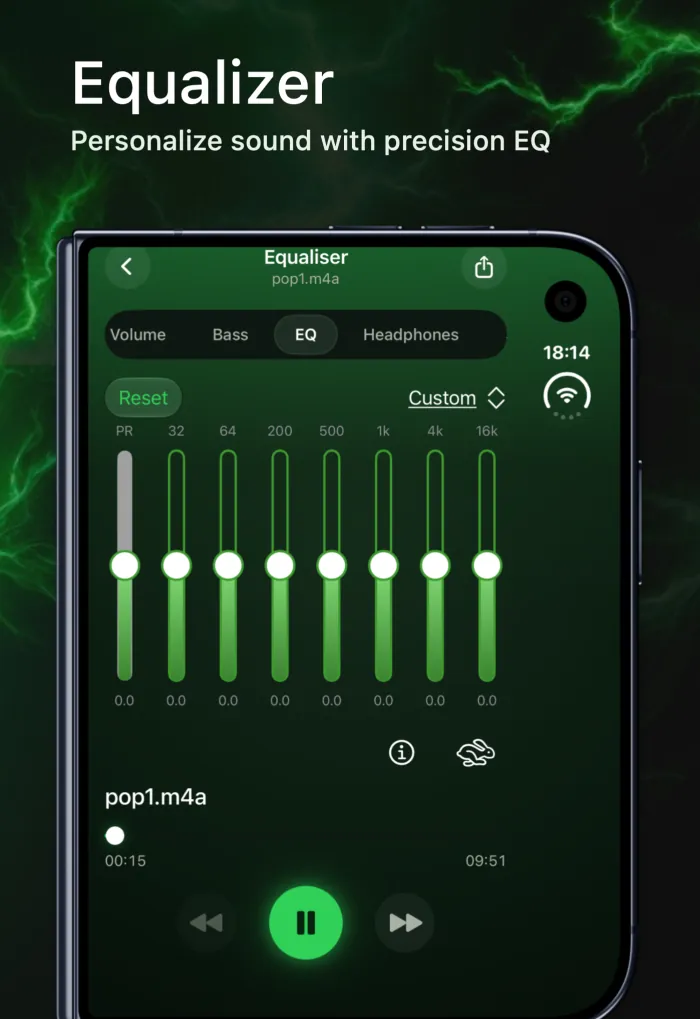
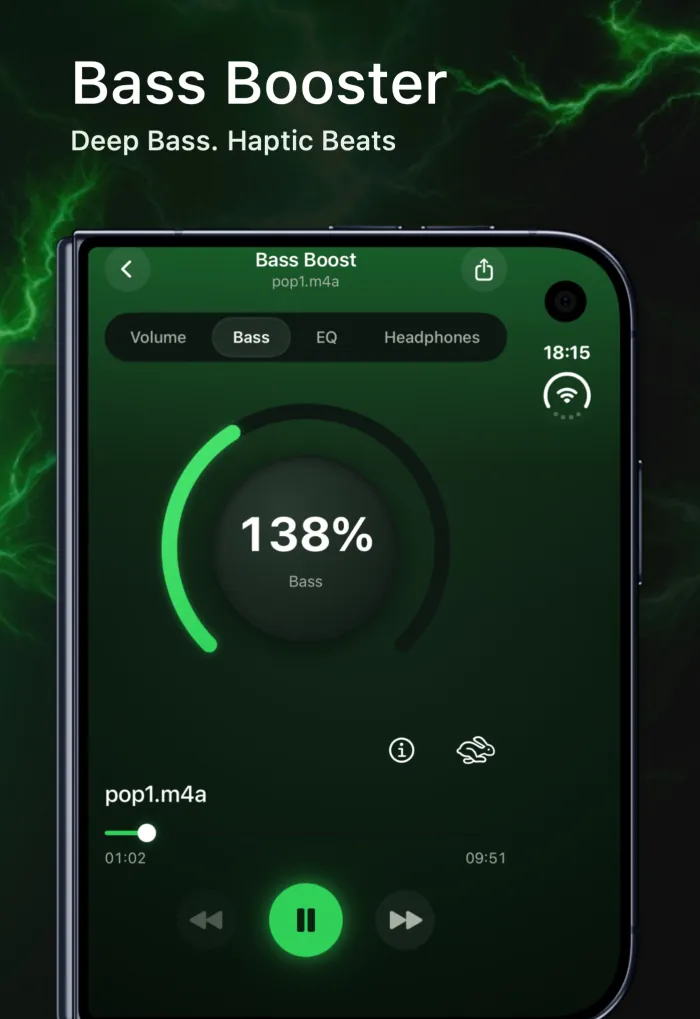
- Clean up the low end. Reverb can make bass sound muddy. A small cut around 200 Hz in the equalizer can help, while Bass Boost adds weight back if a big room thins things out.
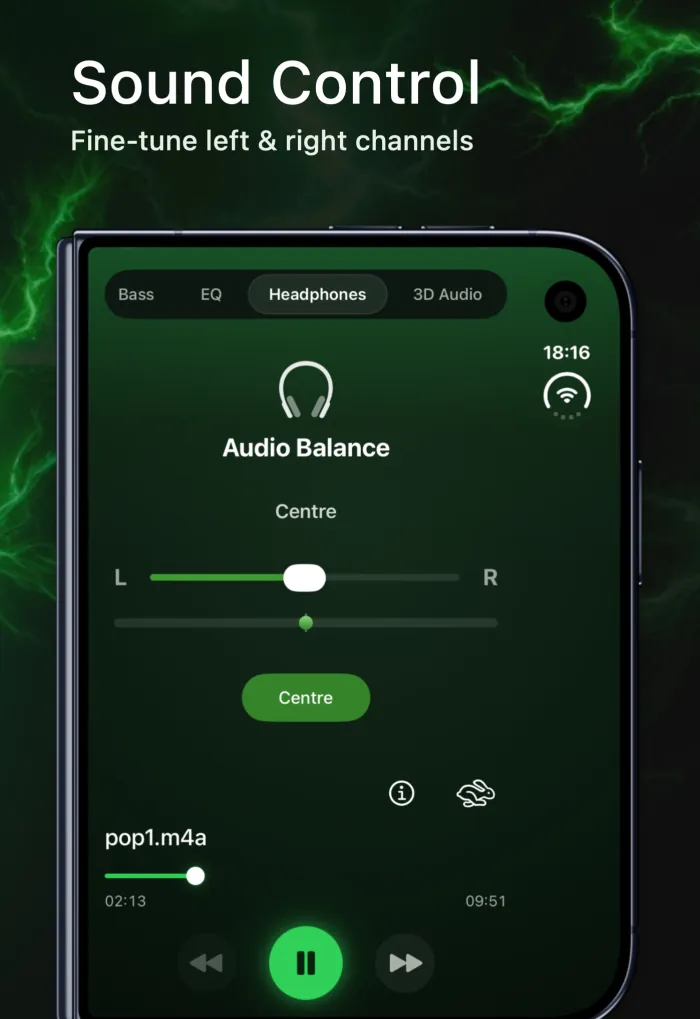
- Check left and right. If one side sounds louder before you add any effect, fix that first with left/right headphone balance.
- Keep the volume comfortable. Effects can make you turn things up; our guide to safe volume boosting explains sensible levels.
Want to see the rest of the player tools? Take a look at 3D Audio and more on the EQfy homepage.
Frequently asked questions
Is EQfy's 3D Audio the same as Apple Spatial Audio?
No. Apple's Spatial Audio is a system feature for supported content such as Dolby Atmos songs in Apple Music. EQfy's 3D Audio is its own in-app effect, with reverb rooms and a movable 3D sound source, for songs you play inside EQfy.
Do I need AirPods for 3D audio on iPhone?
For Apple's head tracking, you need supported AirPods. EQfy's 3D Audio plays through any output, and its 3D Source mode can also use head tracking with supported AirPods such as AirPods Pro or AirPods Max. The moving 3D Source effect is clearest on headphones; on the iPhone speaker, Reverb mode works best.
Can EQfy add 3D audio to Spotify or YouTube?
No. iOS only lets EQfy process audio played inside EQfy, so 3D Audio can't change Spotify, YouTube, Apple Music streaming, calls or other apps.
Does EQfy's 3D Audio work with Apple Music songs?
Not with songs from an Apple Music subscription: they're protected, so they play in EQfy but the enhancement tools aren't available. Purchased or unprotected songs and imported files work with 3D Audio.