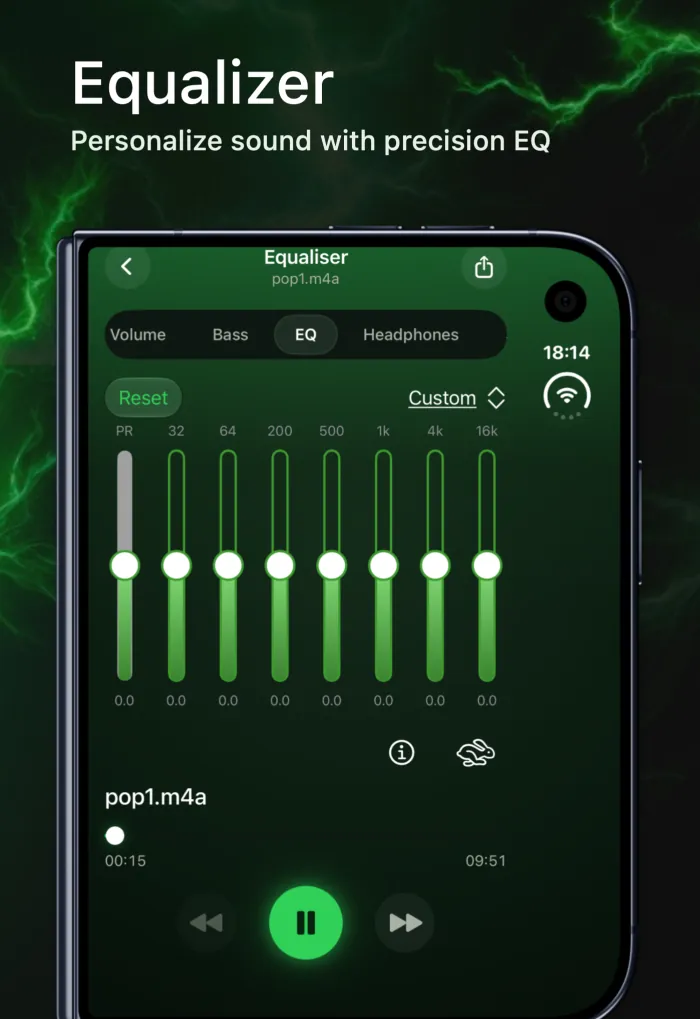
How to Boost Bass on iPhone Speakers and Headphones
To boost bass on iPhone, lift the upper bass around 200 Hz instead of the deepest sub-bass: a phone speaker can't reproduce the lowest notes, but it can play the punch and warmth just above them. In Apple's Music app, the free Bass Booster EQ preset is a one-tap option. For songs you play in EQfy - Louder Volume, the Bass Boost dial adds up to +12 dB of low-shelf boost around 200 Hz, and the equalizer adds deeper bass for headphones.
Why iPhone speakers struggle with deep bass
Bass notes are long, slow sound waves. To make them loud, a speaker has to push and pull a lot of air, which takes a large cone or a lot of back-and-forth movement. An iPhone speaker is tiny and sits inside a thin body, so it physically can't move that much air at the lowest frequencies.
Two things follow from that:
- The deepest sub-bass comes out faint or not at all. In an equalizer, that's roughly the 32 Hz and 64 Hz bands.
- Pushing those frequencies harder doesn't create bass that isn't there. It makes the speaker work at its limit, which uses up loudness and can cause buzzing or distortion.
Your ears add to the problem. We're less sensitive to low frequencies at low volume, so bass is the first thing that seems to disappear when you turn the iPhone down.
Headphones are different. They only have to move the small pocket of air next to your ear, so even small drivers can deliver deep bass. That's why the best way to boost bass on iPhone depends on what you're listening through.
Why 200 Hz is the sweet spot for phone speakers
What you hear as "punch" in a kick drum, bass guitar or 808 isn't only its lowest note. It's also the harmonics above that note, and many of them sit in the upper bass. Your brain is good at filling in a missing low note from its harmonics, so lifting the range around 200 Hz makes music sound fuller on a phone speaker, even though the deepest note is still out of reach.
Get more bass from iPhone speakers before you boost
A few free checks can make more difference than any slider:
- Uncover the speaker. A finger, a thick case or a soft surface over the bottom speaker grille muffles sound, and bass suffers first.
- Use a hard surface. Resting the phone on a table, especially near a wall, can make the low end sound a little fuller than holding it in the air.
- Check the track. Some songs are simply mixed with lighter bass. Compare with a bass-heavy song you know well before you change any settings.
- Switch to headphones for sub-bass. If you want rumble you can feel, headphones will always beat a phone speaker.
Option 1: Apple Music's free Bass Booster
If you listen in Apple's Music app, iOS has a built-in bass preset. The path below follows Apple's iPhone User Guide:
- Open the Settings app.
- Tap Apps, then tap Music.
- Tap EQ, then choose Bass Booster.
It's free and quick, but limited. Bass Booster is a fixed preset with no strength control, and it only changes the Music app. It doesn't affect Spotify, YouTube or other apps.
Option 2: EQfy's iPhone bass booster
The Bass Boost dial uses a low-shelf filter. Instead of adding a narrow spike at one frequency, a low shelf raises everything below its turning point by the same amount, like lifting the whole floor of the mix. It sits around 200 Hz and lets you add up to +12 dB, tuned so iPhone speakers can actually reproduce the extra bass.
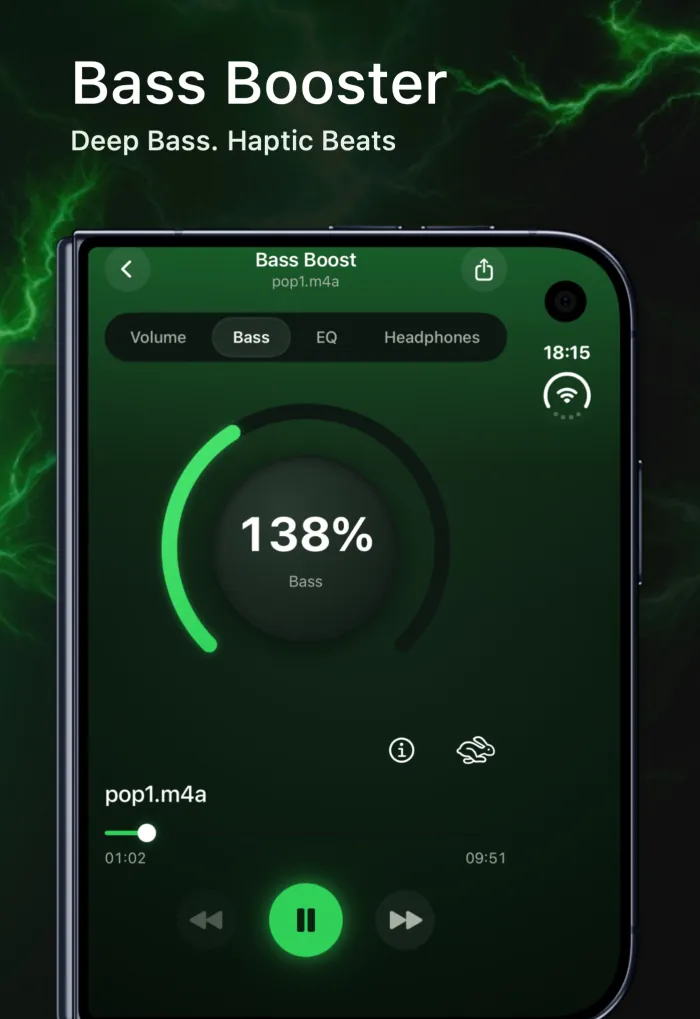
How to boost bass on iPhone with EQfy
- Download the app from the App Store, where it's called Volume Booster Sound Amplifier. It's free to download.
- Import songs from your iPhone's Music library or from the Files app (MP3, M4A and more).
- Play a track and tap the Bass tab in the player.
- Turn the dial up slowly while the song plays, using the speaker or headphones you normally listen with.
- Stop when the bass sounds full. If you hear crackling or buzzing, turn it back a little.
- Want more overall loudness too? The free Volume tab adds up to +12 dB. Our guide to making your iPhone louder than max volume explains how to use it well.
Combine Bass Boost with the equalizer
Bass Boost and the 7-band equalizer work well together, as long as you give each one a different job:
- On headphones, add the deep bands. Bass Boost concentrates on the range around 200 Hz, so raise 32 Hz and 64 Hz by +2 to +4 dB for the sub-bass rumble that headphones can reproduce.
- On the speaker, go easy at 200 Hz. Bass Boost already works there. Add +1 to +2 dB at most, because stacking big boosts at the same frequency is the quickest way to distortion.
- Keep vocals clear. If the mix turns muddy, try 500 Hz at −1 to −2 dB.
- Lower the preamp as you add bass. It leaves room for the extra low end without clipping.
The built-in presets are good starting points. Rap lifts 32 Hz by +5, 64 Hz by +4 and 200 Hz by +2; Reggae adds +3, +4 and +2 to the same bands with a flat preamp; Dance puts its biggest boost, +5, at 64 Hz for kick-drum punch. You'll find every value in our guide to the best EQ settings for iPhone. If you also add room sound with 3D Audio, big reverb presets can blur the low end; 3D audio on iPhone explained shows how to balance the two.
Feel the bass with the haptic player
The app's haptic player makes your iPhone vibrate to the beat and bass of the song. It doesn't make the speaker louder, but when you hold the phone you can feel the rhythm that a small speaker can't fully deliver. It's a fun extra for bass-heavy tracks, it's part of Premium, and like the other tools it works with music played in the app.
How to boost bass without distortion
Bass is the hardest work a small speaker does, so it's usually the first thing to distort. Typical signs are crackling, buzzing, rattling, or a kick drum that sounds flat instead of punchy. When you hear them:
- Turn the Bass Boost dial down a step.
- Lower the preamp in the equalizer, or reduce your biggest bass boost.
- Don't max out Bass Boost, Volume Boost and the EQ bass bands all at once. Pick the one that matters most.
- Try the iPhone volume one or two steps lower. A little less volume with more bass often sounds better than full volume with distortion.
Protect your hearing too. The World Health Organization notes that you can safely listen at 80 dB for up to 40 hours a week, and the safe time gets much shorter as the level rises. On headphones, iOS can cap loud audio: go to Settings › Sounds & Haptics › Headphone Safety and turn on Reduce Loud Audio, as described in Apple's guide to headphone audio levels. For more, read is volume boosting safe?
Which bass option should you use?
- You only listen in Apple Music: start with the free Bass Booster preset.
- You want to control how much bass you add: use Bass Boost in EQfy with your own imported or purchased songs, and fine-tune with the equalizer.
- You want deep, rumbling sub-bass: switch to headphones and raise 32 Hz and 64 Hz. No app can make a phone speaker reproduce what it physically can't.
- You listen in Spotify or YouTube: neither Apple's Music EQ nor EQfy can change those apps, so check that app's own sound settings.
Frequently asked questions
Can I boost bass on iPhone without an app?
Yes, in Apple's Music app. Go to Settings › Apps › Music › EQ and choose Bass Booster. It's a fixed preset and only affects the Music app.
Why doesn't bass boost make my iPhone speaker rumble?
A phone speaker is too small to move the amount of air that deep sub-bass needs. Boosting the upper bass around 200 Hz gives you audible punch, while the deepest notes need headphones or a bigger speaker.
Does EQfy's Bass Boost work with Spotify or YouTube?
No. iOS only lets EQfy process audio played inside EQfy, so Bass Boost can't change Spotify, YouTube, calls or system sounds. It works on songs you import from your Music library or the Files app.
Can bass boost damage my iPhone speaker?
Heavy bass at full volume makes a small speaker work at its limit, which shows up as buzzing or distortion. Use the boost moderately and turn it down as soon as you hear crackling. Our safe boosting guide covers the details.
Is Bass Boost free in EQfy?
EQfy is free to download and Volume Boost is free. Bass Boost, the equalizer and the haptic player are part of Premium.