How to Make AirPods Louder When Max Isn't Enough
To make AirPods louder, first check the limits iPhone puts on headphones: Reduce Loud Audio and a headphone notification that lowered your volume. Then clean the speaker mesh, get a better seal, and turn off Conversation Awareness or Personalized Volume if they keep turning your music down. For songs you play inside EQfy - Louder Volume, a free dial adds up to +12 dB on top of the maximum.
Why is your AirPods volume low?
When AirPods volume is low, the cause is usually one of these:
- An iPhone limit. Headphone Safety caps the level, or iPhone lowered the volume after a headphone notification.
- A blocked speaker. Earwax and dust on the mesh soak up sound.
- A loose fit. If the ear tip doesn't seal, bass and volume leak out.
- Smart features. Conversation Awareness and Personalized Volume change media volume for you.
- Software. An off-centre Balance slider, an EQ setting or old firmware.
The 10 fixes below follow roughly that order. The menu paths match current iOS versions.
10 ways to make AirPods louder
1. Raise Reduce Loud Audio
Go to Settings › Sounds & Haptics › Headphone Safety. If Reduce Loud Audio is on, iPhone reduces any headphone sound above the level you set. Raise the slider a step rather than switching it off, because it's there to protect your hearing.
Also, if you recently got a headphone notification, iPhone automatically sets a lower volume the next time you connect your headphones. That's why AirPods can seem quieter "for no reason". You can turn the volume back up. Apple explains both on Check your headphone audio levels on iPhone.
2. Clean the speaker mesh
This one is easy to overlook. Earwax builds up slowly, so you don't notice the volume dropping. Apple has model-specific steps for cleaning AirPods and cleaning AirPods Pro. In short, Apple's method for the meshes on recent models is:
- On AirPods Pro, remove the ear tips first.
- Dip a soft-bristled children's toothbrush in micellar water (or use the Belkin AirPods Cleaning Kit Apple mentions).
- Brush the mesh in circles for about 15 seconds, then blot it on a paper towel. Repeat three times in total.
- Repeat the process with distilled water to rinse.
- Let the AirPods dry for at least two hours before using or charging them.
Don't run AirPods under water, and don't use sharp objects. Check Apple's page for your model, because the areas you're allowed to clean differ.
3. Get a better seal (AirPods Pro)
A loose ear tip lets sound escape, and the music sounds thin and quiet. With your AirPods Pro in your ears, go to Settings › Bluetooth, tap ⓘ next to your AirPods and run the Ear Tip Fit Test (AirPods Pro 1 and 2) or the Acoustic Seal Test (AirPods Pro 3, iOS 26 or later). If it suggests adjusting, reseat the AirPod and try another ear tip size. Apple notes your left and right ears may need different sizes (Choose your AirPods Pro ear tips).
4. Use noise cancellation in noisy places
On a bus or a busy street, background noise masks your music, so you keep turning it up. Noise cancellation or Adaptive Audio (which blends noise cancellation and Transparency, per Apple) cuts that background noise, so you don't have to turn the music up as far. The WHO recommends well-fitted, noise-cancelling headphones for exactly this reason: they reduce the need to raise the volume (WHO safe listening Q&A).
5. Check Conversation Awareness and Personalized Volume
On supported models (such as AirPods Pro 2 and later and AirPods 4 with Active Noise Cancellation), two features change the media volume for you:
- Conversation Awareness lowers your media when you start speaking and raises it again after the conversation ends. If you sing along or talk to yourself, it may lower the music when you don't expect it. To end it right away, press and hold the AirPod stem.
- Personalized Volume adjusts media volume based on your surroundings and your listening habits over time.
To turn either off, wear your AirPods, go to Settings, tap your AirPods' name near the top, and switch the option off. If you don't see it, tap Audio & Routing first. You can also toggle Conversation Awareness by touching and holding the volume control in Control Center (Apple: Adjust listening mode settings).
6. Center the Balance and check Mono Audio
If one AirPod is quieter than the other, go to Settings › Accessibility › Audio & Visual and drag the Balance slider back to the center. Make sure Mono Audio is set the way you want (Apple: Adjust audio settings). Still uneven? Clean the quieter side, then follow our guide to fix one AirPod being louder than the other.
7. Turn on Headphone Accommodations
This built-in accessibility feature can amplify soft sounds and boost certain frequencies on supported Apple and Beats headphones, including AirPods 2 and later and all AirPods Pro and AirPods Max models. Go to Settings › Accessibility › Audio & Visual › Headphone Accommodations, turn it on, enable Media, and use Customize Audio to pick the samples that sound best to you (Apple: Customize headphone audio levels). Apple says the Media option applies it to music, movies, podcasts and audiobooks, which makes it one of the most useful built-in ways to lift quiet details.
8. Reset EQ settings that cut volume
EQ settings can make AirPods sound quieter. In the Music app's settings (Settings › Apps › Music › EQ), presets like Bass Reducer or Treble Reducer take energy away. Choose Off (the old Late Night preset is no longer in the list on current iOS) and turn off Sound Check on the same screen. Newer AirPods (AirPods 4 or later, AirPods Pro 2 or later, AirPods Max 2) also have their own three-band equalizer. If someone changed it, set it back to Recommended in Settings › Bluetooth › ⓘ › Audio & Routing › Equalizer.
9. Update the AirPods firmware
Firmware updates arrive automatically while your AirPods are charging and in Bluetooth range of an iPhone connected to Wi-Fi. To check your version, go to Settings › Bluetooth › ⓘ and scroll to About. If it's behind, put the AirPods in the case, connect the case to power, keep the lid closed near your iPhone and wait at least 30 minutes (Apple: About firmware updates for AirPods).
10. Reset your AirPods
If nothing has helped, try a reset. Apple suggests it for a range of AirPods issues. Put the AirPods in the case, close the lid for 30 seconds, then on your iPhone go to Settings › Bluetooth › ⓘ › Forget This Device. Open the lid and either hold the setup button for about 15 seconds (AirPods 1–3, AirPods Pro 1–2) or double-tap the front of the case three times as the light changes (AirPods 4 and later, AirPods Pro 3). When the light flashes amber, then white, reconnect. Apple's reset guide has the exact steps per model. If the volume is still low after all ten fixes, contact Apple Support.
Make AirPods louder than max with EQfy
Once your AirPods are clean, sealed and free of limits, you're at their real maximum. If a song is still too quiet, the extra headroom has to come from the audio itself. EQfy's free Volume Boost dial goes from 100% to 200%, which adds up to +12 dB to songs you play in the app. Import tracks from your Music library or the Files app, open one, and raise the dial slowly. With earbuds, small steps matter: the sound is right next to your eardrum.

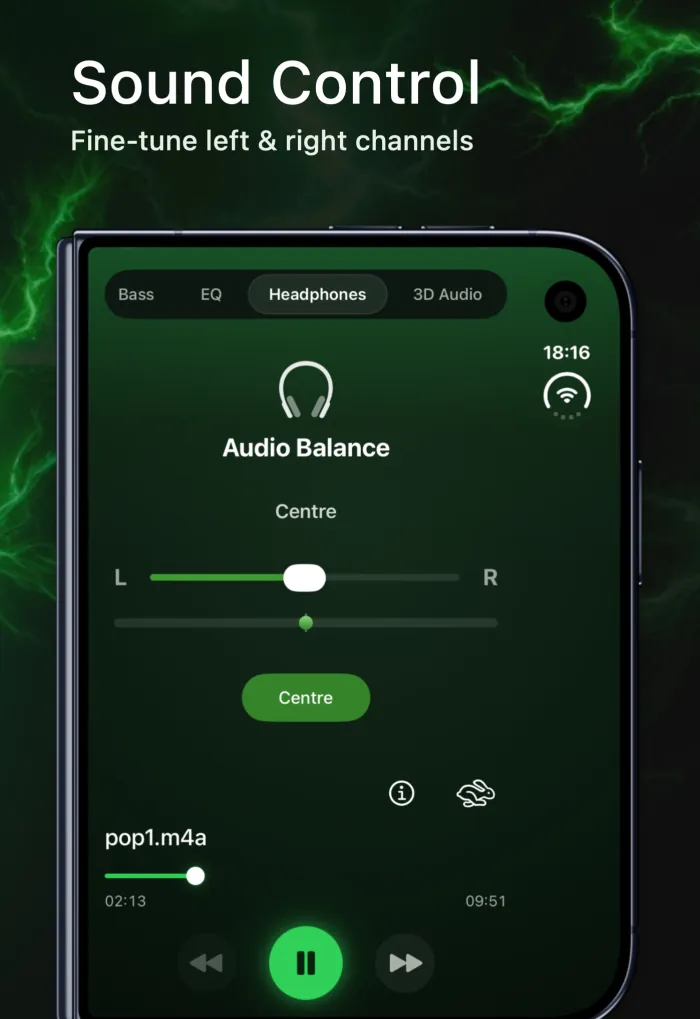
With Premium you can also shape the sound. Bass Boost adds weight around 200 Hz, the 7-band equalizer lifts vocals, and the Headphones tab has a left-right Audio Balance slider with a Centre button if one side sounds weaker.
Louder, but not at your hearing's expense
Apple warns that background noise and long exposure to high volume can make sounds seem quieter than they actually are (Apple safety information), so it's easy to creep the volume up in earbuds. The WHO suggests keeping your device at no more than 60% of maximum and taking regular breaks. iPhone can show your live headphone level if you add the Hearing control to Control Center. Read is a volume booster safe? before you push the dial to 200%. If you notice ringing or muffled hearing, see a hearing professional.
Want more loudness on the iPhone speaker too? Our guide on how to make iPhone louder than max covers the Volume Limit, Music EQ settings and speaker cleaning, and our iPhone volume too low checklist helps if the speaker is quieter than it should be. You'll find EQfy on the App Store.
Frequently asked questions
Why are my AirPods so quiet all of a sudden?
Common causes are a headphone notification that made iPhone lower the volume, Reduce Loud Audio set to a low limit, Conversation Awareness or Personalized Volume turning media down, or earwax on the speaker mesh. Check those before assuming the AirPods are faulty.
Why is one AirPod louder than the other?
Check that the Balance slider in Settings › Accessibility › Audio and Visual is centered, then clean the quieter AirPod's mesh and check its fit. Our headphone balance guide walks through every fix.
Can I make AirPods louder than max volume?
Not for every app. Headphone Accommodations can amplify soft sounds on supported AirPods, and EQfy's free Volume Boost adds up to +12 dB, but only to songs you play inside EQfy. It can't boost Spotify, YouTube, calls or system sounds.
Does cleaning AirPods make them louder?
It can. Earwax and debris on the speaker mesh block sound. Follow Apple's cleaning steps for your model, and let the AirPods dry for at least two hours before using or charging them.
Does EQfy work with AirPods?
Yes. EQfy's tools apply to audio played in EQfy, whatever you're listening on, including AirPods, wired headphones and Bluetooth speakers. Volume Boost is free; Bass Boost, the equalizer and the left-right balance slider are part of Premium.