iPhone Volume Too Low? 12 Quick Fixes to Try
If your iPhone volume is too low, the cause is usually a setting rather than a broken speaker: a speaker Volume Limit, Reduce Loud Audio for headphones, audio still going to a Bluetooth device, or a Balance slider moved off-centre. Work through the 12 checks below in order. Most take under a minute, and the last one tells you whether the hardware needs service.
Why is my iPhone so quiet?
A quiet iPhone almost always falls into one of three groups:
- Settings that cap or redirect sound. Volume limits, hearing-protection features, Bluetooth routing and accessibility options.
- Physical blockage. Lint in the grilles, a case or film over the speaker, or your hand covering it.
- The source itself. One app, or one song, that's simply quieter than the rest.
The checklist starts with the quick wins and ends with the hardware test, so you don't book a repair for something a toggle can fix.
Fixes 1–6: check your sound settings
1. Make sure you're changing the right volume
iPhone has two main volumes. The side buttons change media volume while audio is playing and ringer and alert volume when nothing is playing. So pressing volume up on the Home Screen won't make your next video louder. Start the song or video first, then press the buttons, or drag the slider in Control Center. If you'd rather the buttons only ever control media, go to Settings › Sounds & Haptics and turn off Change with Buttons (Apple: Adjust the volume on iPhone).
If calls and alerts are what's quiet, check that the Ring/Silent switch isn't showing orange. On models with an Action button, check that Silent mode is off in Control Center.
2. Turn off the speaker Volume Limit
Go to Settings › Sounds & Haptics › Volume Limit and turn off Limit Maximum Volume, or slide it to the top. Newer iOS versions also have Reduce Loud Sounds under Built-In Speaker, which softens loud sounds from the speaker. If either option is greyed out, it may be locked through Screen Time content restrictions.
3. Check Headphone Safety and Reduce Loud Audio
If the problem is only in headphones, open Settings › Sounds & Haptics › Headphone Safety. Reduce Loud Audio caps headphone sound at the level you pick. A low limit makes everything quiet.
There's a second, less obvious cause. When iPhone sends a headphone notification because you've listened loudly for long enough to affect your hearing, it automatically sets the volume lower the next time you connect headphones. Apple confirms this on its headphone audio levels page. You can turn it back up, but the warning is worth taking seriously. See is a volume booster safe for sensible limits.
4. Check that audio isn't going to a Bluetooth device
If the iPhone speaker is silent or very quiet, sound may still be going to AirPods in your bag, a car or a speaker in another room. In Control Center or on the Lock Screen, tap the playback destination (AirPlay) button on the music controls to see where audio is going, and choose iPhone. If a Bluetooth speaker or car stereo sounds capped, make sure iPhone knows what it is: Settings › Bluetooth › ⓘ › Device Type (Apple's Bluetooth audio guide). Also turn up the accessory's own volume.
5. Rule out Focus and Do Not Disturb
Do Not Disturb doesn't turn your music down. Focus and Do Not Disturb silence calls, alerts and notifications, not media volume. Apple's speaker troubleshooting includes turning Do Not Disturb off (Settings › Focus › Do Not Disturb), which matters when ringtones and alerts are silent. If your music is quiet, keep looking.
6. Center the Balance and check Mono Audio
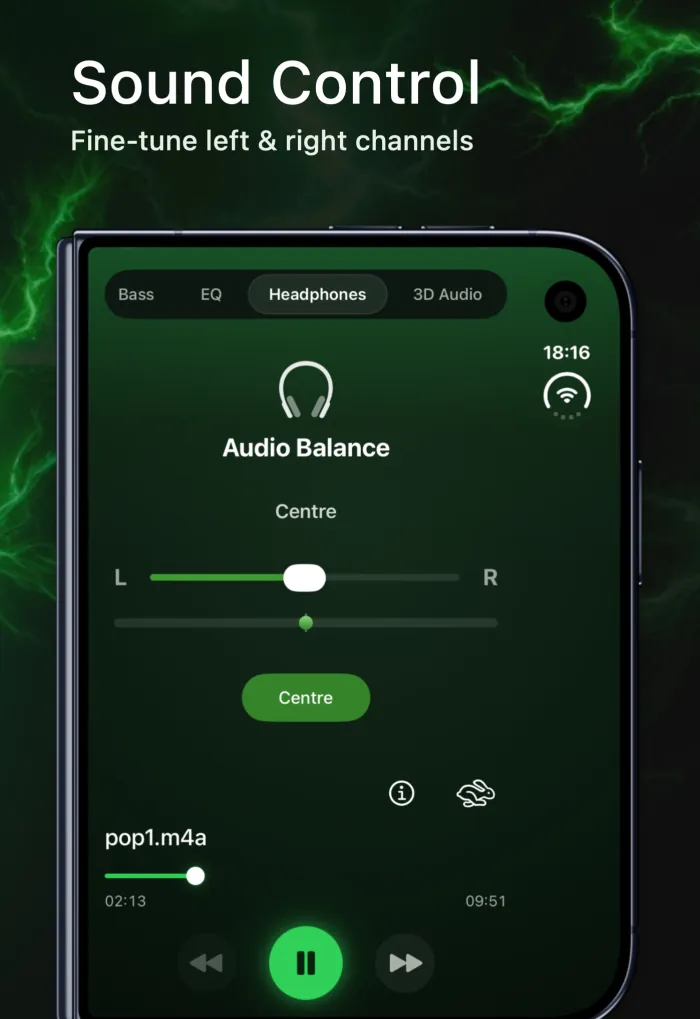
Go to Settings › Accessibility › Audio & Visual. If the Balance slider is pushed toward L or R, one side gets quieter. Drag it back to the center. Also check Mono Audio. It plays the same content in both ears, which is useful for some people but can make stereo music sound flatter. Apple covers both in Adjust audio settings on iPhone. If one earbud is still quieter, our left-right headphone balance guide goes further.
Fixes 7–9: iPhone speaker quiet? Check the hardware
7. Clean the speaker and receiver openings
Pocket lint and dust collect in the bottom speaker grille and the receiver slot at the top. Apple's article If you hear no sound or distorted sound from your iPhone speaker says to check these openings and clean them with a small, soft-bristled brush that's clean and dry. Brush gently, and don't push anything into the holes.
8. Remove the case and screen protector
Apple lists this step too: remove screen protectors, films and cases. Some cases have cut-outs that don't line up with the speaker. Test without the case. If it's much louder, you've found the problem.
9. Check how you're holding the phone
In landscape, gaming or watching video, your palm can cover the bottom speaker. Point it toward you or rest the phone on a hard surface. It's free and worth a try.
Fixes 10–12: apps, software and hardware
10. Check the app's own volume
If only one app is quiet, look inside it. Video players and games often have their own volume slider. Music apps may normalize loudness. In Apple's Music app, turning off Sound Check (Settings › Apps › Music) stops louder tracks being turned down, as Apple explains in If music in Apple Music sounds quiet. Spotify's audio normalization has a Loud level for Premium users.
11. Restart and update iOS
A restart is a quick way to clear a temporary audio glitch. If that doesn't help, install the latest iOS in Settings › General › Software Update (Apple: Update your iPhone). Back up first.
12. Run a hardware check
Two quick tests show whether the speaker itself is the problem:
- Ringtone slider test. Go to Settings › Sounds & Haptics and drag the Ringtone and Alerts slider back and forth. Apple says that if you hear no sound, or the speaker button on the slider is dimmed, your speaker might need service.
- Diagnostics mode (iPhone 14 and later). Turn the iPhone off, then press and hold the side button as it starts up to open Recovery Assistant, and tap Diagnostics Mode. It needs Wi-Fi. The Audio test plays tones and asks whether they're clear and undistorted. Apple warns the tones are loud. Details: When and how to use diagnostics mode.
If either test fails, contact Apple Support or an Apple Authorized Service Provider. No app or setting can fix a damaged speaker.
When the song itself is too quiet: boost it in-app
Sometimes everything checks out and one recording is just quiet. Old live recordings, voice memos, lectures and downloaded MP3s are common examples. That's where an in-app booster helps. EQfy - Louder Volume plays the songs you import from your iPhone Music library or the Files app, and its free Volume Boost dial goes from 100% to 200%, up to +12 dB of extra gain on top of your iPhone volume.
- Import the quiet track into EQfy.
- Open it in the player and stay on the Volume tab.
- Raise the dial gradually until it sounds right, and stop if you hear distortion.

For more ways to get extra loudness, including Music EQ settings and Bass Boost, read how to make iPhone louder than max. You can download EQfy from the App Store.
Quiet in headphones only?
If the speaker is fine but your earbuds aren't, the fixes are different: cleaning the mesh, ear-tip fit, Conversation Awareness and firmware updates. Our step-by-step guide on how to make AirPods louder covers them, and our FAQ answers common app questions.
Frequently asked questions
Why is my iPhone volume so low even at max?
Usually a setting is capping it: the speaker Volume Limit, Reduce Loud Audio for headphones, or a headphone notification that lowered the volume. Dirt in the speaker grille and a thick case are the next most common causes.
Does Do Not Disturb lower music volume?
No. Focus and Do Not Disturb silence calls, alerts and notifications, but they don't turn down music or video. If your ringtone seems quiet, check the Ring/Silent switch or Silent mode and the Ringtone and Alerts slider instead.
Why is my iPhone quiet in only one app?
Many apps have their own volume or loudness setting, such as Sound Check in Apple's Music app or audio normalization in Spotify. Check that app's settings and its own volume slider first.
How can I tell if my iPhone speaker is broken?
In Settings, open the sound settings and drag the Ringtone and Alerts slider. If you hear nothing, or the slider's speaker button is dimmed, Apple says the speaker might need service. iPhone 14 and later can also run an Audio test in diagnostics mode.
Can EQfy fix a song that's recorded too quietly?
Yes, if you play it inside EQfy. The free Volume Boost adds up to +12 dB to songs imported from your Music library or Files. It can't boost other apps, calls or system sounds, or Apple Music subscription songs, which are DRM-protected.