Text to Speech App for iPhone: Make an MP3 File
If you want a text to speech app for iPhone, you have two options. Apple's built-in Read & Speak feature reads any text aloud for free. EQfy - Louder Volume's Text to Speech tool, in the AI tab, turns up to 5,000 characters into a voiceover and saves it as an MP3 file you can play or share. The built-in feature is best for listening, and the AI tool is best when you need an audio file.
Free option: Apple's Read & Speak
Your iPhone can already read text aloud. According to Apple's iPhone User Guide, go to Settings › Accessibility › Read & Speak. Older iOS versions call it Spoken Content.
- Speak Selection: turn it on, select some text and tap Speak.
- Speak Screen: turn it on, then swipe down with two fingers from the top of the screen to have the whole screen read aloud. Controls let you pause and change the speed.
- Voices and Speaking Rate: choose a voice and how fast it talks in the same menu.
Apple also has Live Speech (Settings › Accessibility › Live Speech), which speaks what you type during conversations and in apps like FaceTime. It's designed for talking, not for making audio files. Read & Speak speaks what's on your screen; it doesn't give you a file to keep.
EQfy's Text to Speech: a voiceover file
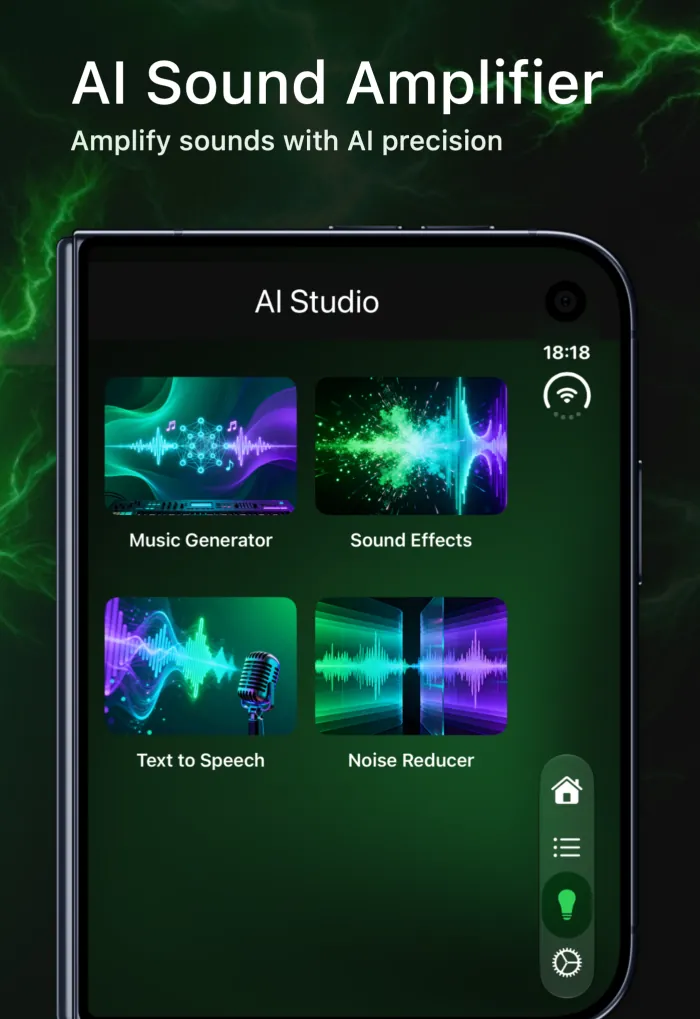
- Open the AI tab and tap Text to Speech. The screen shows your credit balance at the top.
- Type or paste your text in the box under "Enter text to convert to speech". The limit is 5,000 characters, and a counter shows how many you've used.
- Tap the Voice row to open Select Voice. You can search, filter by gender, age, accent, use case or language, and tap the play button to hear a preview when one is available.
- Set the Speed to 0.75×, 1×, 1.25× or 1.5×.
- Tap Generate Speech. Please don't close the screen while it processes.
When it's done, the speech is saved as an MP3 in a playlist called Text to Speech in your library. You can play it like any other track, open it in the player and share it from there.
How to turn text into an MP3 on iPhone
Read & Speak speaks the text out loud and stops there, so it can't give you an MP3. To end up with a file, you need a tool that generates one. In EQfy, the steps above finish with an MP3 in your library: open it like any song, play it back, and share it from the player to save it to Files or send it on. Keep in mind that each generation uses credits and needs a connection, as explained next. If the MP3 comes out too quiet, our MP3 volume booster guide shows how to make a louder copy.
What it costs and what it needs
- Credits. Each generation costs 500 credits, whether your text is 20 characters or 5,000. Credits are deducted only after the file is saved, and if your balance is too low, EQfy opens the credit packs instead. You can earn credits in the Credit Shop, for example with a daily login streak, and a free trial may include one free AI generation to try.
- Internet. The text is processed online, so you need a connection, and the AI tab is hidden when you're offline.
- Voices and languages. The voices come from a list that loads when you open the picker. Use the Language filter to see what's available for your text rather than assuming a language is covered.
Tips for better results
- Write for the ear. Short sentences and clear punctuation make speech sound more natural.
- Preview voices first. Pick a voice with the preview button before spending credits.
- Combine short pieces. A generation costs the same whatever the length, so put a whole script into one text, up to 5,000 characters, instead of many small ones.
- Check the result. Listen once for names and numbers, which are the usual trouble spots.
Which should you use?
| Read & Speak (Apple) | Text to Speech (EQfy) | |
|---|---|---|
| Best for | Listening to an article, message or page | Making a voiceover file |
| Output | Spoken aloud, no file | MP3 saved in your library |
| Length | Whatever is on screen | Up to 5,000 characters at a time |
| Cost | Free | 500 credits per generation |
If you also want music or sound effects for the same project, see the AI song generator guide and how to make AI sound effects on iPhone.
Frequently asked questions
How do I make my iPhone read text aloud?
Use Apple's built-in feature. In iOS 26 and later, go to Settings, Accessibility, then Read & Speak, and turn on Speak Selection or Speak Screen. Select text and tap Speak, or swipe down with two fingers from the top of the screen.
How do I turn text into an MP3 on iPhone?
In EQfy, open the AI tab, choose Text to Speech, type or paste up to 5,000 characters, pick a voice and tap Generate Speech. The result is saved as an MP3 in the Text to Speech playlist in your library.
How many characters can EQfy turn into speech?
Up to 5,000 characters per generation. The box shows a counter, such as 120/5000, and turns red when you go over the limit.
Does Text to Speech work offline?
No. EQfy's AI tools need an internet connection, and your text is processed online, so the AI tab is hidden when you're offline.